Quick Start
Connect to your databases and run your first schema comparison
This guide walks you through connecting to your databases, creating a project and running your first schema comparison.
Want to look around first? Click Try the demo on the welcome screen to open a sample comparison — no database needed.
Connecting to Databases
PostgresCompare compares two databases: the Source and the Target. Each side uses a saved connection.
Adding a Connection
- Click Connections in the sidebar
- Click New connection
- Enter your connection details:
- Name: A name to recognise this connection by
- Host: Database server address (e.g.,
localhostordb.example.com) - Port: PostgreSQL port (default:
5432) - Username: Database user
- Password: User password
- Default database: The database to connect to
- Click Test to verify the connection
- Click Save
If PostgresCompare finds PostgreSQL connections already set up on your machine, click Import from environment to add them in one step.
Connection Tips
- Use a database user with read permissions on all schemas you want to compare
- For remote databases, ensure your firewall allows connections on the PostgreSQL port
- Consider using SSH tunneling for secure remote access
Creating a New Project
- Click Schema projects in the sidebar
- Click New project
- Name your project
- Under Source and Target, choose the connection, database and schema for each side
- Save the project
Projects store your connections, comparison options, and results, making it easy to repeat comparisons.
Running Your First Comparison
With the project’s source and target set:
- Open the project and click Compare
- Wait for the comparison to complete
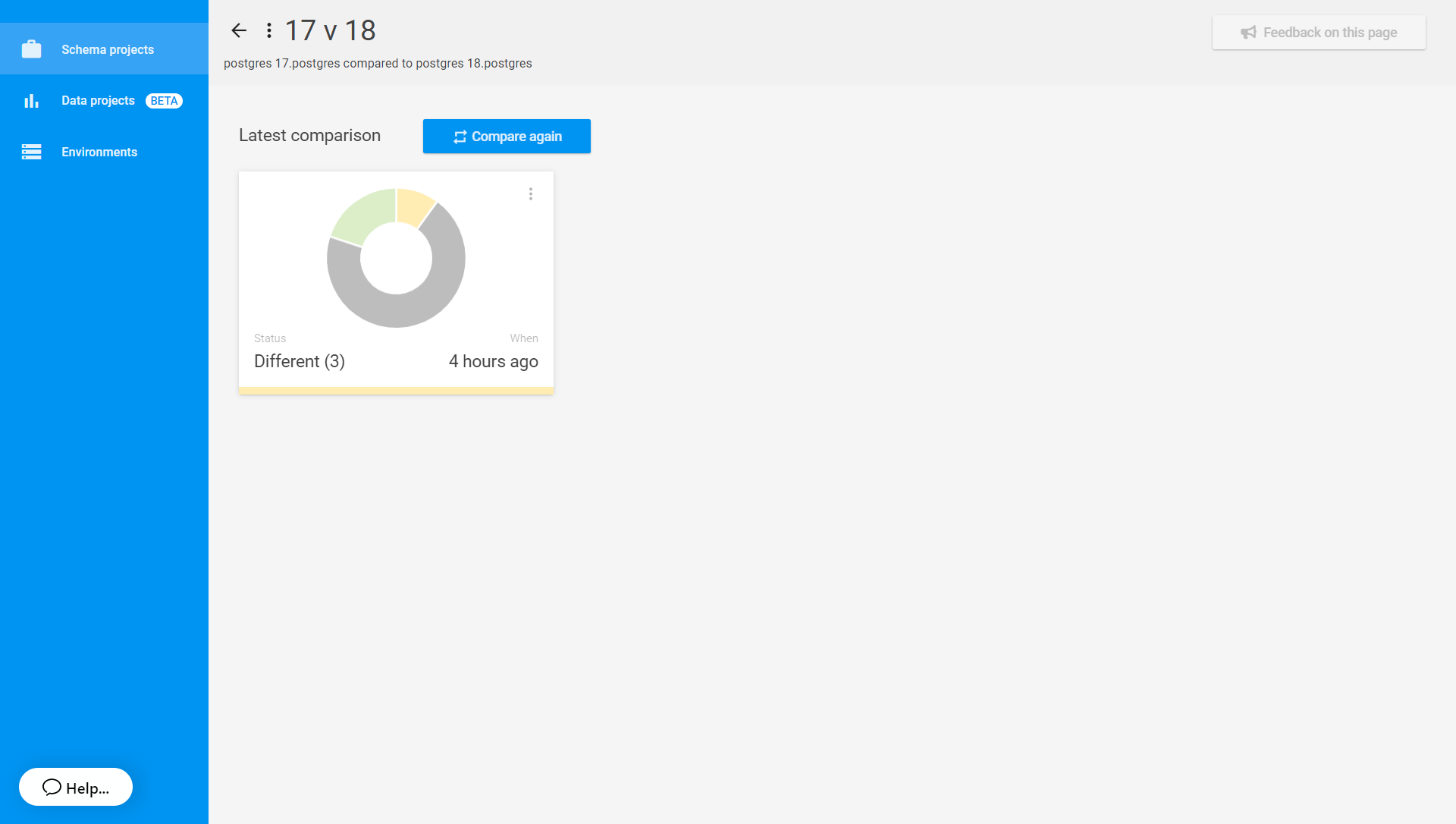
The comparison reads the schema from both databases and identifies:
- Objects that exist only in the source (new)
- Objects that exist only in the target (dropped)
- Objects that differ between source and target (different)
Understanding the Results
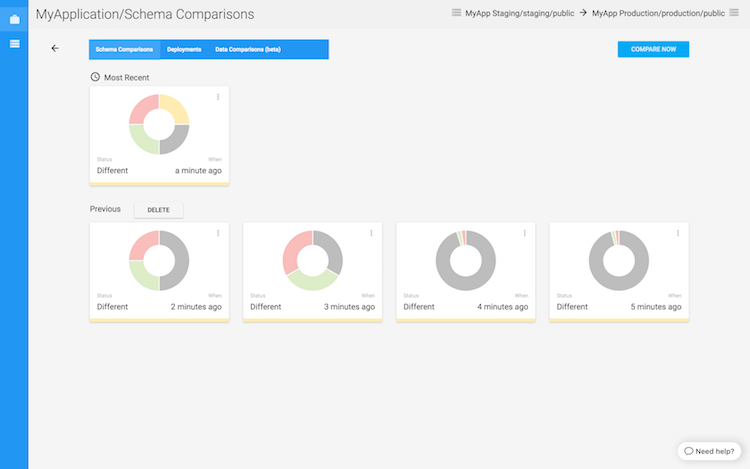
The comparison results show a tree view of all database objects organized by type:
- Tables - Structure, columns, constraints
- Views - View definitions
- Materialized Views - Materialized view definitions
- Functions - Functions
- Procedures - Stored procedures
- Triggers - Table triggers
- Indexes - Table indexes
- Sequences - Auto-increment sequences
- Schemas - Database schemas
- Composite Types - User-defined composite types
- Enums - Enumeration types
- Domains - Domain types
- Extensions - PostgreSQL extensions
- Roles - Database roles
- Databases - Database settings
- Tablespaces - Tablespace definitions
- Casts - Type casts
- Conversions - Encoding conversions
- Event Triggers - Event triggers
- Foreign Data Wrappers - FDW definitions
- Foreign Servers - Foreign server definitions
- Foreign Tables - Foreign tables
- Operator Families - Operator families
- Operators - User-defined operators
- Access Methods - Access methods
- Text Search Parsers - Full-text search parsers
- Text Search Templates - Full-text search templates
- Text Search Dictionaries - Full-text search dictionaries
- Text Search Configurations - Full-text search configurations
- User Mappings - Foreign server user mappings
- Publications - Logical replication publications
- Subscriptions - Logical replication subscriptions
- Statistics - Extended statistics
- Policies - Row-level security policies
- Collations - Collation definitions
- Aggregates - Aggregate functions
- Ranges - Range types
- Settings - Configuration settings
Each object shows a status indicating its comparison result:
- New - Exists only in the source
- Dropped - Exists only in the target
- Different - Different between source and target
- Identical - Same in both databases (no action needed)
Generating a Deployment Script
To create a SQL script that synchronizes the differences:
- Review the differences and select which changes to include using the checkboxes
- Click Generate deployment script…
- Review the generated SQL before running it
Next Steps
- Understanding comparison results - Detailed guide to interpreting results
- Comparing databases - Advanced comparison techniques
- Safe deployments - Best practices for deploying changes